
User Interface Overview
Below is an overview of the main UI components you will interact with while using Subtitle Insights.
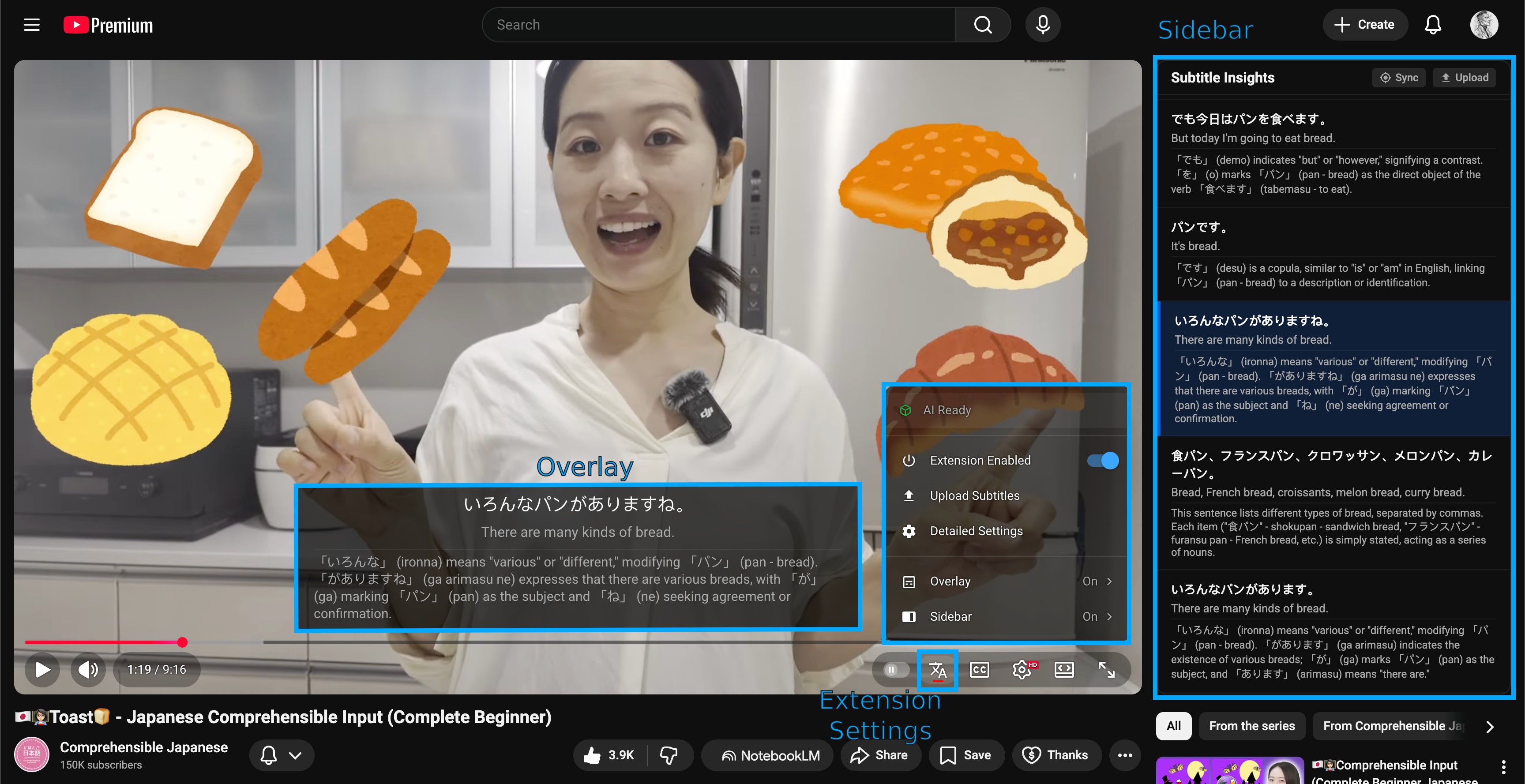
Source: Comprehensible Japanese
Click on a component in the list below to learn more about how it works:
- Overlay: The subtitle display that appears directly on top of the video player.
- Sidebar: The panel on the right side of the screen showing the full transcript and AI insights.
- Selecting Subtitles: How to choose which tracks to display and analyze.
- Profiles: Save and switch between different configuration sets for different languages or study goals. Accessible through the Gear Icon in the settings popup.
- Keyboard Shortcuts: Configure hotkeys for fast navigation (Next, Previous, Replay).
- AI Capabilities: Understand the real-time translation and grammatical analysis features.
Extension Settings
The extension settings are accessed through the unified popup menu, which is designed to match the native YouTube and Stremio aesthetic.
Extension Popup
The popup menu is triggered by clicking the Subtitle Insights icon in the video player's control bar. It provides quick access to high-level toggles and sub-menus for deeper customization.
Header Controls
- Live Status: View the current readiness of the AI models directly at the top of the menu.
- Detailed Settings: Click the Gear Icon in the top-right corner to open the full-page interface for managing profiles and developer settings.
Main Menu Toggles
- Global Visibility: Choose whether the Overlay or the Sidebar is active.
- AI Toggles: Individually enable or disable Translation and Insights.
Sub-Menus
The popup features a hierarchical structure for detailed control:
Overlay Settings
- Original Text Visibility: Toggle the display of the original subtitle text.
- Translation Visibility: Toggle the display of the AI-generated translation.
- Insights Visibility: Toggle the display of the AI insights.
- Pause on Hover: Enable or disable the automatic pausing feature.
Sidebar Settings
- Translation Visibility: Toggle translations within the transcript view.
- Insights Visibility: Toggle detailed insights within the transcript view.